_edited.png)
How to Update Website on Wix for Better Online Results


Every business owner knows how frustrating it is when a website fails to attract customers or loads slowly. Staying ahead online means regularly reviewing your Wix site for content accuracy, user experience, and technical performance. By prioritizing a content audit and understanding web performance metrics, you set the stage for meaningful updates that help you reach more customers and grow your Hungarian business. This guide walks you through practical steps to refresh your site, boost visibility, and protect your investment.
Table of Contents
Quick Summary
Key Point | Explanation |
1. Conduct a thorough content audit | Review all pages for accuracy, relevance, and user engagement to identify areas needing improvement. |
2. Measure key performance metrics | Use analytics to assess page load speed, mobile responsiveness, and bounce rate, focusing on areas that need enhancement. |
3. Implement design and SEO improvements | Enhance site design for better user experience and optimize content for search engines with the right keywords and structure. |
4. Back up your site safely | Create full backups before making changes, using both manual and scheduled methods for comprehensive protection. |
5. Test extensively before publishing | Review edits for mistakes and test all functionalities to ensure a flawless user experience after updates go live. |
Step 1: Assess Current Website Content and Performance
Before you make any updates to your Wix site, you need to understand what’s currently working and what isn’t. This assessment phase gives you a clear picture of your content quality, user experience, and performance metrics so you can prioritize improvements that will actually move the needle for your business.
Start by conducting a content audit of your entire site. Review every page, blog post, image, and video to evaluate accuracy, relevance, and whether each piece serves your audience. Ask yourself: Is this content current or outdated? Does it answer questions your customers actually ask? Is it optimized for search engines?
Next, examine how your content is structured. Check if your headings are clear, your calls to action are visible, and your information flows logically. Content that confuses visitors won’t convert them into customers, no matter how good your product or service is.
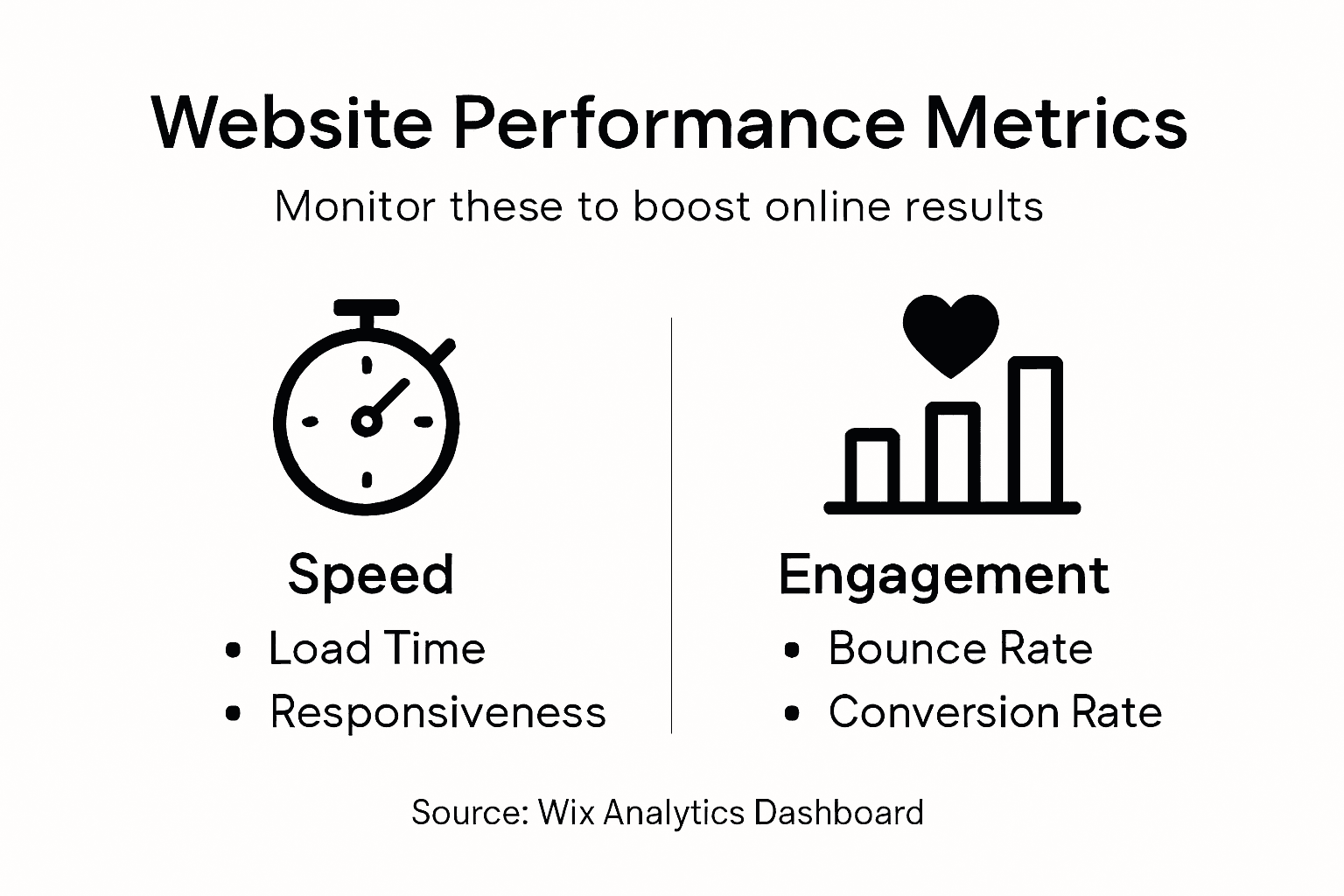
Performance metrics matter just as much as content quality. You’ll want to measure:
Page load speed - how quickly your site opens for visitors
Mobile responsiveness - whether your site functions smoothly on phones and tablets
User interaction - how visitors engage with your pages and forms
Bounce rate - the percentage of people who leave without exploring further
Use Wix’s built-in analytics dashboard to gather this data. Pay special attention to pages with high traffic but low engagement, or pages people leave quickly. These are your red flags.
Here’s how key website performance metrics impact your business:
Metric | What It Measures | Business Impact |
Page Load Speed | Time to display content | Faster sites increase conversions |
Mobile Responsiveness | Adaptation to devices | Good mobile UX expands audience |
User Interaction | Engagement with site elements | Higher engagement means more leads |
Bounce Rate | Single-page visits | High rates signal content issues |
Understanding web performance metrics like load times and responsiveness helps you identify where improvements will have the biggest impact on user experience and search rankings. Poor performance drives visitors away and hurts your SEO.
Also assess your site’s accessibility. Can users with disabilities navigate your content easily? This includes checking color contrast, alt text on images, and keyboard navigation. Accessibility isn’t just about compliance—it expands your potential audience.
Create a simple spreadsheet documenting your findings. List each page, its purpose, current performance, and what needs improvement. This becomes your roadmap for the updates ahead.
Your current performance data is your baseline—use it to measure success after you make changes and prove that your updates deliver real results.
Pro tip: Set up Google Analytics on your Wix site if you haven’t already, and revisit your assessment data monthly to track whether your updates actually improve performance over time.
Step 2: Backup Your Site and Plan Essential Updates
Before you make any changes to your Wix site, you need a safety net. Creating a backup protects your entire website—files, database, and all your content—so you can restore everything if something goes wrong during updates.
Wix makes backups straightforward through your account settings. Access your site’s backup options and create a full backup that captures both your file system and database. This two-part approach ensures you have everything needed to recover completely if an update causes unexpected issues.
You have two backup options to consider:
On-demand backups - Create these manually right before major updates so you can restore quickly if needed
Scheduled backups - Set Wix to automatically backup your site regularly, protecting against hardware failure, malware, and human error
The best strategy uses both methods. Schedule automatic backups to run weekly or monthly depending on how frequently you update content. Then create an additional manual backup immediately before any significant changes.
Store your backups in multiple locations. While Wix maintains backups on their servers, consider backup storage options that include offsite or cloud storage as an extra layer of protection. Multiple copies across different media types ensure you can recover even if one backup fails.
Compare Wix backup strategies and their benefits:
Backup Type | When to Use | Advantage |
On-Demand Backup | Before major edits | Immediate restore option |
Scheduled Backup | Weekly or monthly | Ongoing protection from failures |
Offsite Storage | For critical backups | Extra layer of security |
Wix Server Backup | Default for all sites | Easy access through dashboard |
Now plan which updates actually matter for your business. Review your assessment findings and list the changes that will have the biggest impact on user experience and conversions. Don’t try to update everything at once—prioritize based on what visitors struggle with most and what search engines reward.
Create a simple update schedule. Which pages need new content? Which sections need better calls to action? Which performance issues should you fix first? A clear plan keeps you focused and prevents overwhelming yourself.
Backups aren’t just insurance—they’re permission to experiment confidently, knowing you can always return to what worked before.
Pro tip: Document your backup dates and what each backup contains in a spreadsheet, then test restoring from one backup annually to confirm the process actually works when you need it.
Step 3: Implement Design and SEO Improvements on Wix
With your backup in place and your priorities set, you’re ready to make changes that actually improve how search engines and visitors see your site. Start with design improvements that enhance user experience and build trust with your audience.
Begin with your site’s visual hierarchy. Make sure your most important content stands out visually. Clear headings, readable fonts, and good color contrast guide visitors through your pages naturally. When people can easily find what they need, they stay longer and engage more.

Next, optimize your site for mobile devices. Most of your visitors browse on phones, so your design must work flawlessly across all screen sizes. Wix’s responsive templates handle this automatically, but check each page manually to ensure buttons are clickable, text is readable, and images display correctly on mobile.
Now shift focus to SEO. Start with on-page optimization using Wix’s built-in SEO tools:
Meta titles and descriptions - Write unique, keyword-rich titles and descriptions for each page
Page URLs - Use clear, descriptive URLs that reflect your page content
Image alt-text - Add descriptive alt-text to every image for accessibility and search visibility
Heading structure - Use H1 for your main heading, then H2 and H3 for subheadings in logical order
Quality content matters more than keyword stuffing. Write for your audience first, and naturally include relevant keywords throughout. SEO-friendly web design integrates what users are searching for with what search engines can understand, creating content that ranks and converts.
Improve your site’s technical foundation. Ensure your pages load quickly by optimizing images, minimizing code, and using Wix’s performance features. Fast sites rank better and keep visitors engaged.
Add structured data markup to help search engines understand your content. For businesses, add your business information, contact details, and service descriptions in a format search engines recognize.
SEO isn’t about tricking search engines—it’s about making your site clear, fast, and useful for real people.
Pro tip: Focus on one page at a time, implement all improvements, then check your analytics after two weeks to see which pages generate the most traffic and engagement from your changes.
Step 4: Review, Test, and Publish Website Changes
Before you go live, take time to thoroughly review everything you’ve changed. This step prevents embarrassing mistakes and ensures your updates deliver the results you’re after.
Start by reviewing all your edits in the Wix editor. Read through every page you modified, checking for typos, broken sentences, and formatting issues. Look at how images display and whether your content flows logically from top to bottom.
Next, use Wix’s preview mode to see exactly how your site appears to visitors. Preview on multiple devices to catch any design problems. Your site should look great on desktops, tablets, and mobile phones.
Test all functionality thoroughly before publishing:
Forms and buttons - Click every form field and button to confirm they work
Links - Open all internal and external links to verify they go to the right destination
Videos and images - Ensure media files load correctly and display properly
Contact information - Verify phone numbers, email addresses, and hours are accurate
Check your site’s accessibility while you’re testing. Can you navigate using only a keyboard? Do images have descriptive alt-text? Does your color contrast make text readable? These details matter for both user experience and SEO.
Test your page speed using Wix’s built-in performance tools. Slow pages frustrate visitors and hurt your search rankings. If you find slow pages, optimize images further or remove unnecessary elements.
Review your SEO changes specifically. Confirm that your meta titles, descriptions, and URLs look correct in the editor. Publishing your website means ensuring all your improvements are actually in place and functioning correctly.
Once you’re confident everything works, publish your changes. Click the publish button in Wix and wait for confirmation that your site has updated. This typically takes a few minutes.
Testing feels like extra work until something breaks on your live site—then it becomes the most important step you ever took.
Pro tip: After publishing, wait 24 hours then visit your live site from a different device and browser to confirm all changes appear correctly in the real world.
Elevate Your Wix Website with Expert Design and SEO Support
Updating your Wix website for better online results can feel overwhelming with so many challenges like content audits, ensuring mobile responsiveness, improving page load speed, and fine-tuning SEO elements. If you want to avoid the frustration of low engagement and high bounce rates, expert help is just a click away. Our team at WebCityX specializes in modern responsive website design and SEO specifically tailored for Wix and Wix Studio sites. We understand the critical need to back up your site securely and implement changes that truly convert visitors into loyal customers.

Take control of your online presence today. Visit WebCityX to discover how our technical support and personalized strategies can transform your site’s performance and user experience. Don’t wait until poor site speed or confusing navigation drive customers away. Explore our services now and start seeing real results on your Wix site.
Frequently Asked Questions
How do I conduct a content audit on my Wix site?
To conduct a content audit on your Wix site, review each page for accuracy, relevance, and whether it meets your audience’s needs. Create a spreadsheet to record your findings, noting the current performance of each page and areas that need improvement.
What should I prioritize when updating my website on Wix?
Focus on updates that enhance user experience and conversions based on your audit findings. Prioritize pages with high traffic but low engagement, as these represent the greatest opportunity for improvement.
How can I optimize my Wix site for mobile users?
To optimize your Wix site for mobile users, ensure your design is responsive and all content displays correctly on different screen sizes. Manually check each page in mobile view to make sure buttons are clickable and text is readable.
What steps should I take before publishing my updates on Wix?
Before publishing, review all changes thoroughly, checking for typos, formatting issues, and functionality. Test every button, link, and media file, ensuring that all elements work correctly and that your site is accessible to all users.
How often should I back up my Wix site?
You should back up your Wix site regularly, ideally through scheduled backups every week or month. Additionally, create an on-demand backup right before making significant changes to ensure you can restore your site if necessary.
What are key performance metrics to monitor after updating my Wix site?
After updating, monitor metrics like page load speed, mobile responsiveness, user interaction, and bounce rate. Reviewing these metrics within 30 days can help identify areas for further improvement and confirm that your updates are successful.
Recommended
